
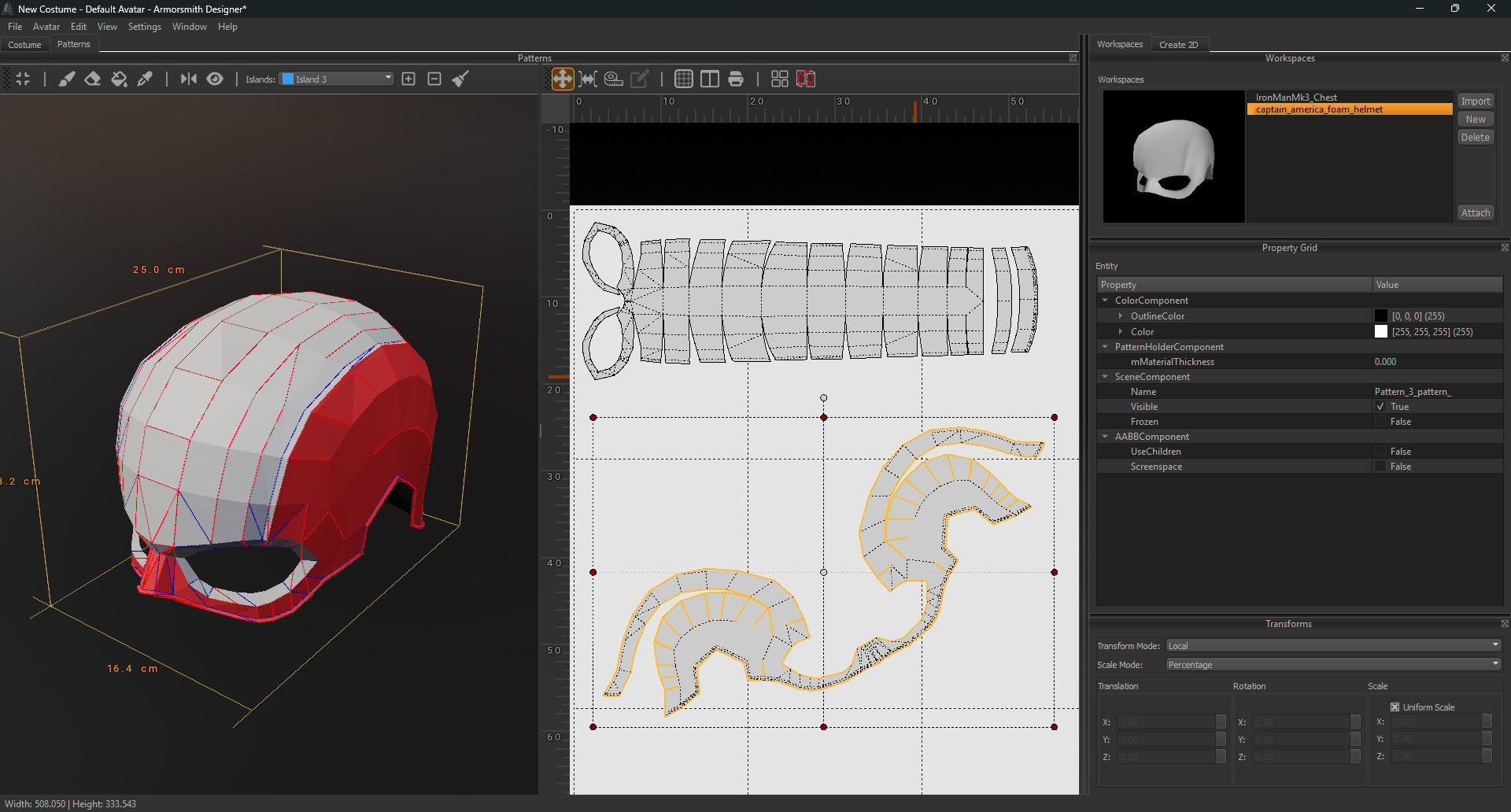
Use the pattern toolbar above the 2D view to unfold a model automatically, change how its pieces connect, and arrange the results. Select a pattern in the 2D view to work with it. The selected pattern is outlined, as shown below.
A selected pattern with its transform handles and the pattern toolbar above the 2D view
The Unfold button starts an automatic unfold. Islands follow a separate workflow: their patterns update dynamically as you edit the islands in the 3D view. See Create and manage islands.

Pattern toolbar

Move or rotate a pattern

  1. Select Transform Pattern, then click the pattern you want to change.
  2. Click and drag the pattern to move it.
  3. To rotate it, click the small circular handle above the selection and drag.
Hide the 3D panel when you want more room for arranging patterns. Turn it back on to compare a piece with its position on the model.

Change how pieces connect

Select Join/Cut to work with connections between pattern pieces. Cut a connection when you need separate pieces; join edges when you want pieces connected in the flat pattern. Inspect the result in the 2D view before arranging the pieces.

Arrange and check the layout

Use Pack Patterns to arrange pieces automatically, then use Transform Pattern to adjust individual pieces. Turn on the Grid when it helps you align the layout. Use the Measurement Tool to check sizes before printing. When the layout is ready, select Print. See Printing for page and print settings.