
These instructions are for Armorsmith Designer 2.1.1.0. Earlier versions, including 2.1.0.10, can show different panels and labels.
Choose a drawing layer
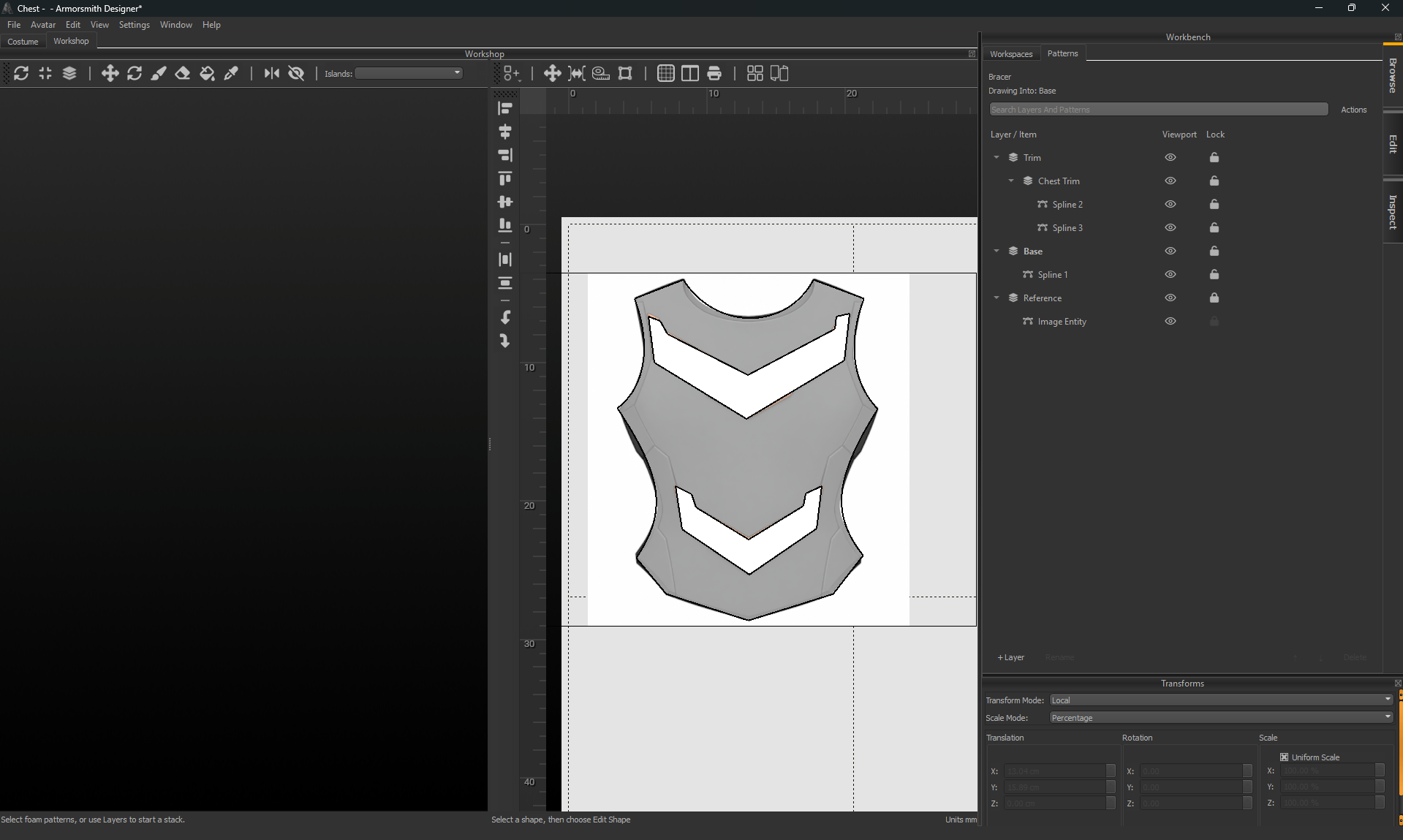
- Open Workshop and choose the workspace.
- Open Workbench → Browse → Patterns.
- Click + Layer, then name the layer.
- Use Set As Drawing Layer on the layer’s context menu.
- Check Drawing Into before creating the next object.
Move and rename content
Use Search Layers And Patterns to find items. Select a layer or item and click Rename, or press F2. Right-click selected items and choose Move To Layer to choose an existing destination. Use New Layer From Selection to organize those items into a new layer. The up/down layer controls change drawing order; they do not change a foam piece’s physical height.Group and ungroup
Select the drawing objects you want to handle together, then choose Group Selection (Ctrl+G). Use Ungroup (Ctrl+Shift+G) to separate the group again. Expand a group in the browser and select a member when you need to edit that item directly. A group is an organizational selection; it is different from an instance whose outline edits are linked to another pattern.Hide, isolate, and lock
Use the Viewport column to show or hide a layer or item. Alt-click a visibility control to isolate or restore visibility; the context menu also offers Isolate / Restore Visibility. Use the Lock column to protect content from selection while working nearby. A parent group or layer can hide or lock its children. If an item’s own visibility switch does not reveal it, check its parents too.Delete safely
Check the selection before pressing Delete or using the context menu:- Delete Selected Items removes those items.
- Delete Layer And Contents removes the layer and everything inside it. The confirmation identifies the layer.
- Ungroup separates members instead of deleting them.