
These instructions are for Armorsmith Designer 2.1.1.0. Earlier versions, including 2.1.0.10, can show different panels and labels.
Create the stack
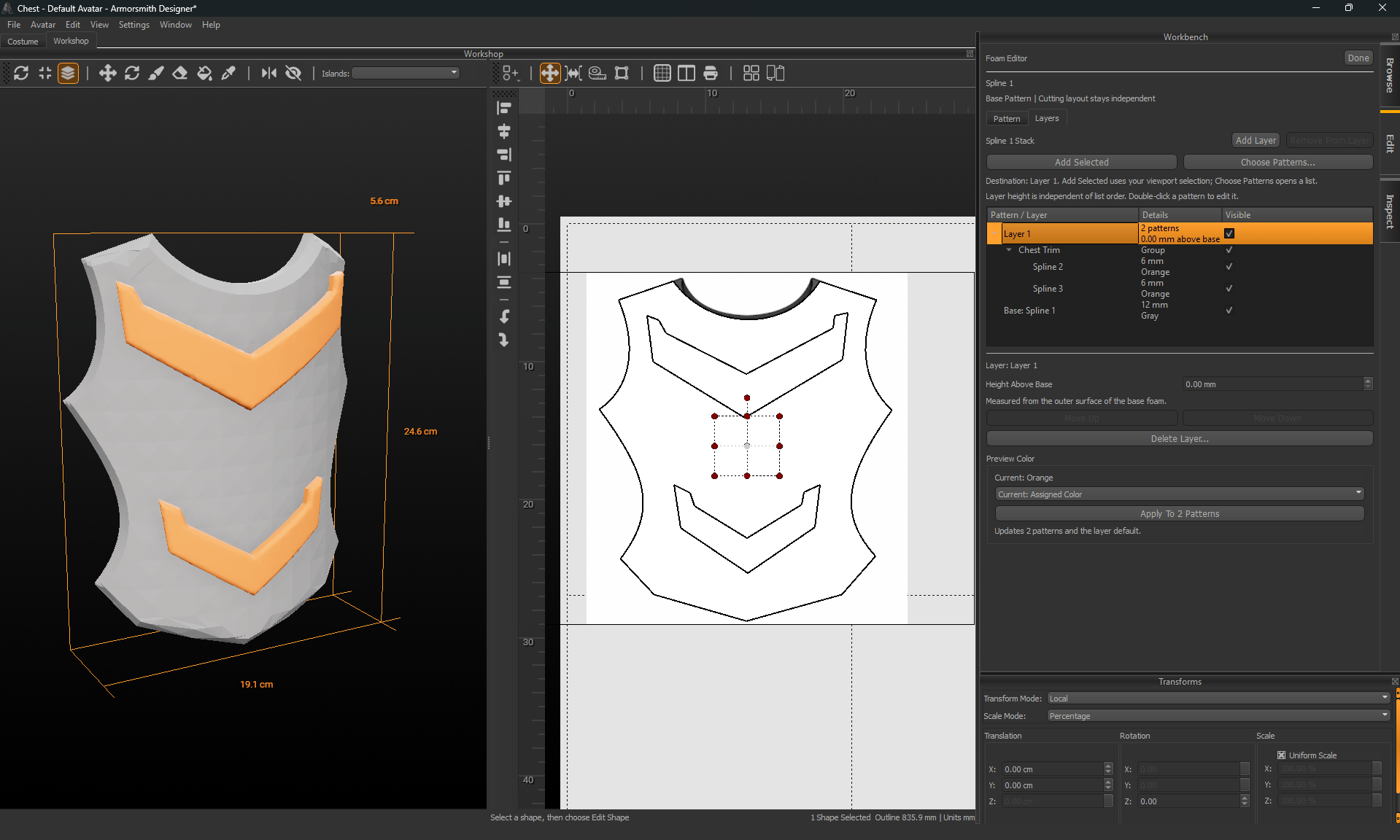
- Select a closed foam pattern and open Edit Foam → Layers.
- Click Use Selected Pattern As Base if a stack has not been started.
- Click Add Layer and select the new layer row as the destination.
- Select smaller closed outlines in the viewport and click Add Selected, or use Choose Patterns… to pick them from a list.
- Read the feedback and check the result in the 3D view.
Set height above the base
Select a layer row and edit Height Above Base. It measures from the outer surface of the base foam to the underside of that layer. Use 0 mm for a first layer glued directly to the base; do not add the base thickness again. A new layer starts above the previous layer once. After creation, each layer’s height is independent. Move Up and Move Down change the order in the list without changing height. Reordering is not a way to raise or lower a physical piece. For example, two 2 mm details can occupy a first layer at 0 mm. A badge placed over them can occupy another layer at 2 mm. Check its footprint: the layer does not automatically find support in gaps or decide where glue should be applied. Hiding a row changes visibility. It does not set a new physical height or automatically restack other pieces.Move a raised pattern
- Select the raised pattern in the 3D view or its stack row.
- Activate Translate for local X/Y movement across the base, or Rotate for local Z rotation.
- Drag a handle and inspect its position on the formed surface.
- Release to keep the move. Use Escape during a drag to cancel that unfinished move.
Set preview colors and shared values
Use Preview Color for the selected pattern. When a layer row is selected, the layer color action applies to its current patterns and the default for later additions. A pattern can then receive its own override. Select several patterns to edit shared thickness, color, or edge finish. Mixed values do not mean every piece has the same setting. Set a shared value only when you intend it to apply to the whole selection. Choose common edge units before entering a mixed selection’s depth. Preview colors help you read the assembly; they are not a physical foam-stock database. They do not change the cut outline.Remove a member or delete a layer
- Remove From Layer detaches the selected member while keeping its pattern in the workspace and preserving its cutting layout. Use this to keep working on the piece independently.
- Delete Layer… removes the layer and its patterns from the project. Detach any members you want to keep first.