
These instructions are for Armorsmith Designer 2.1.1.0. Earlier versions, including 2.1.0.10, can show different panels and labels.
Match the foam stock
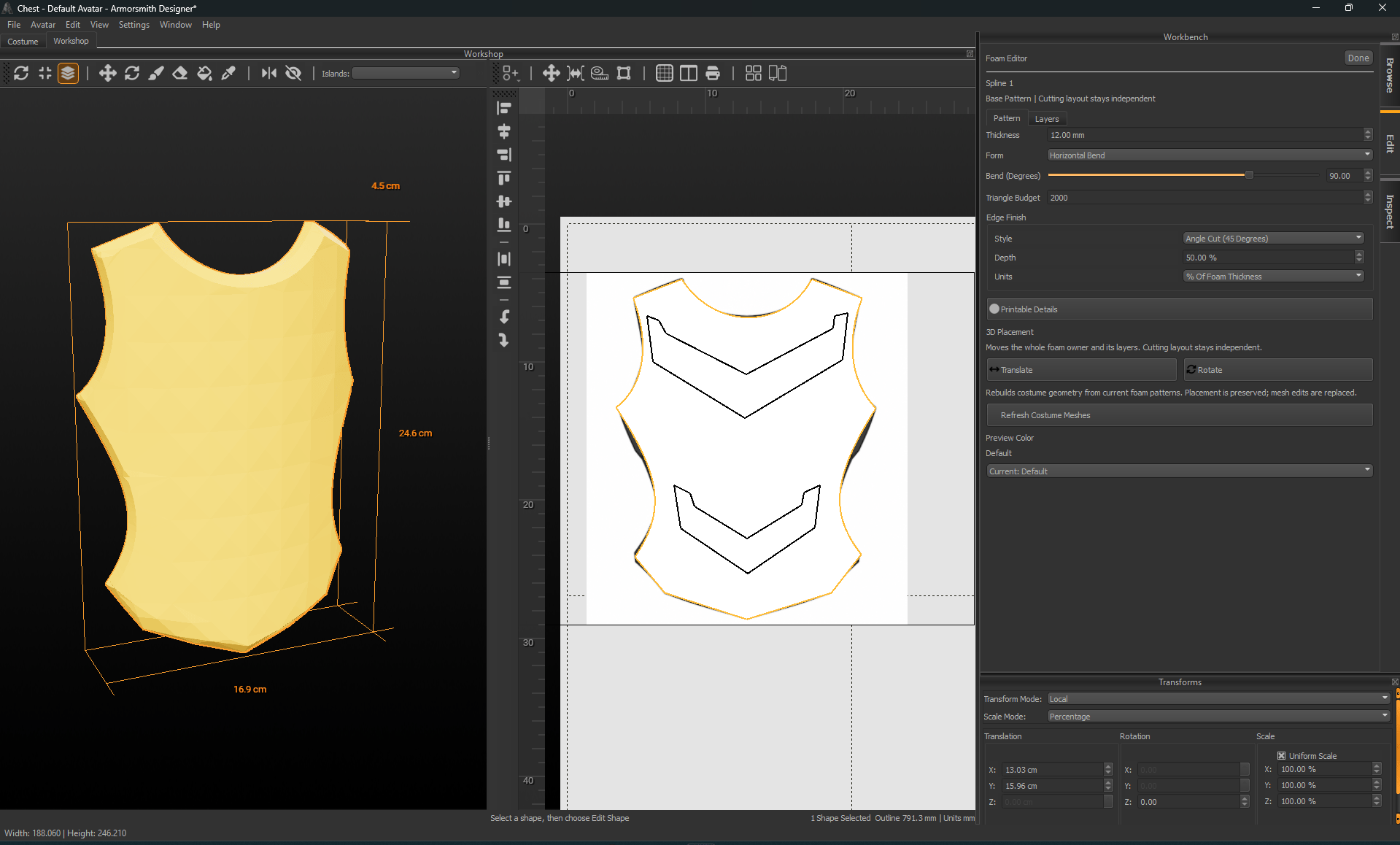
Choose a form
Use the numeric field or slider to adjust the form. A smaller sphere radius gives tighter curvature; a larger radius makes the piece flatter. Stay within the displayed valid range. Use Advanced Forming → Reverse Forming Direction when the piece bends the wrong way.
The flat axes belong to the pattern. Rotating its 3D placement does not change what Horizontal Bend means in those local axes.
For a layer member, forming belongs to the base. Use Edit Base Form to change the shared form instead of treating each raised pattern as an independent bend.
Choose 3D preview detail
Triangle Budget controls the maximum triangles for that solid, including front, back, and sides. The field accepts 64–64,000. Increase it when curved forms or rounded edges need more detail; lower it when many pieces make editing slow. An unusually complex boundary may still be invalid at a small budget. The cutting outline and layer containment retain their precision independently of this 3D setting. During a bend/radius slider gesture or placement drag, the preview can temporarily use less detail. Release the control and inspect the finished result before judging smoothness.Place a base or a raised member
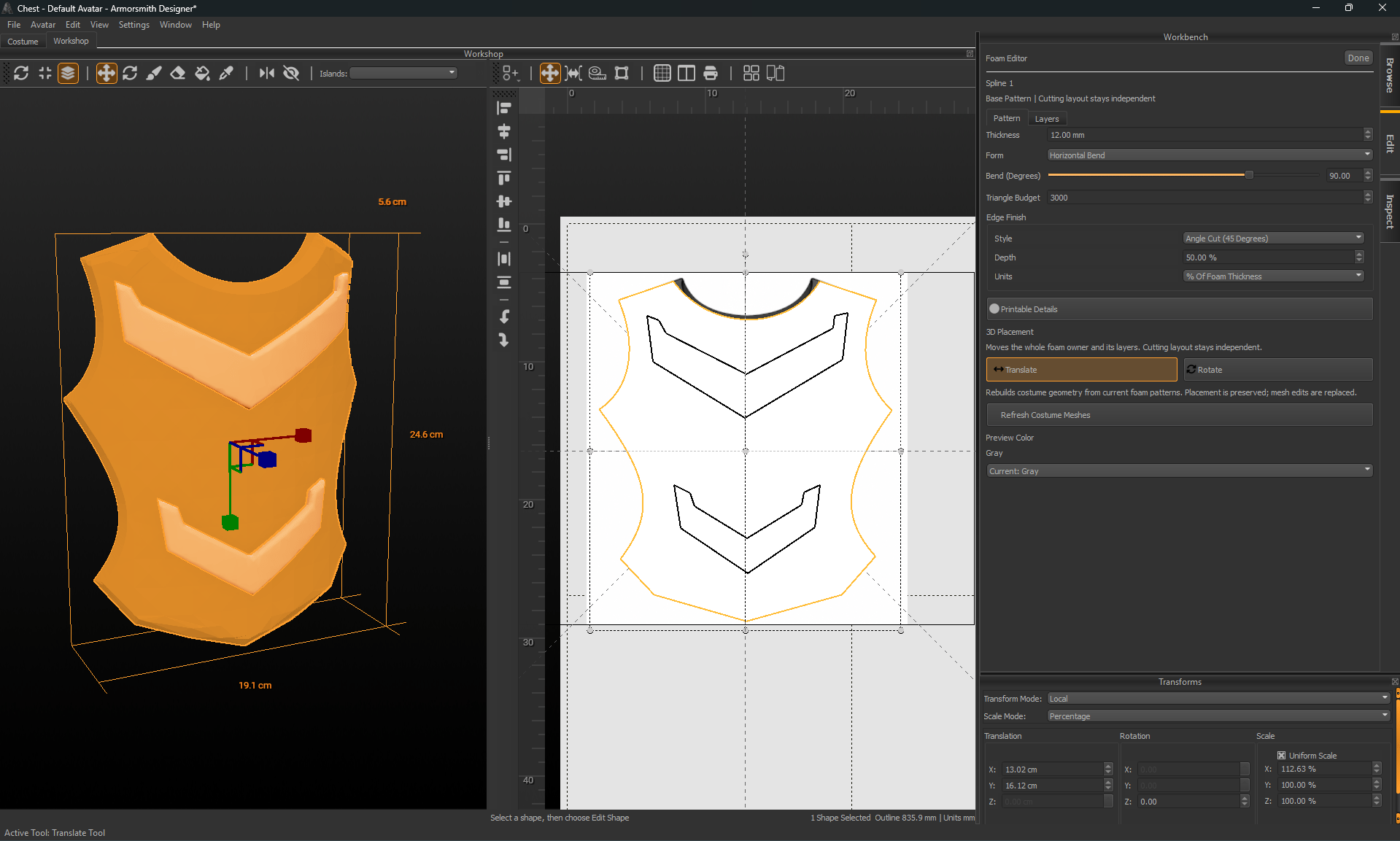
Read the displayed dimensions
The 3D view’s width, height, and depth can describe the combined visible foam geometry, including raised pieces and their spacing. Those formed bounds are different from the width and height of a flat cut outline. Check the measurement you actually need before changing scale.Attach and refresh the costume
Enable Attach As Part for a base when you want its foam geometry available in Costume. Use the workspace’s Attach To Costume action to fit it to an avatar slot when needed. After editing foam patterns, use Refresh Costume Meshes to rebuild generated costume geometry. Its existing placement is preserved; mesh edits are replaced. Save a copy before refreshing a part with further mesh adjustments. Inspect the refreshed part in Costume and save the project. A correct Workshop preview alone does not confirm that the generated attachment is up to date.Forming does not simulate foam heating, stretch, glue, or springback. Make a physical test, especially for a spherical form, before cutting final material.