
These instructions are for Armorsmith Designer 2.1.1.0. Earlier versions, including 2.1.0.10, can show different panels and labels.
Create and promote an outline
- Open Workshop and select a workspace.
- Open Create above the pattern view and choose Line, Rectangle, or Circle.
- Complete the shape in the 2D view. For a free outline, place a few anchors and close the path when ready.
- Select it and use Edit Shape for further changes.
- When the outline is closed and encloses a valid area, right-click it and choose Promote To Foam Pattern.
- Open Edit Foam to set thickness and forming.
Choose what to edit
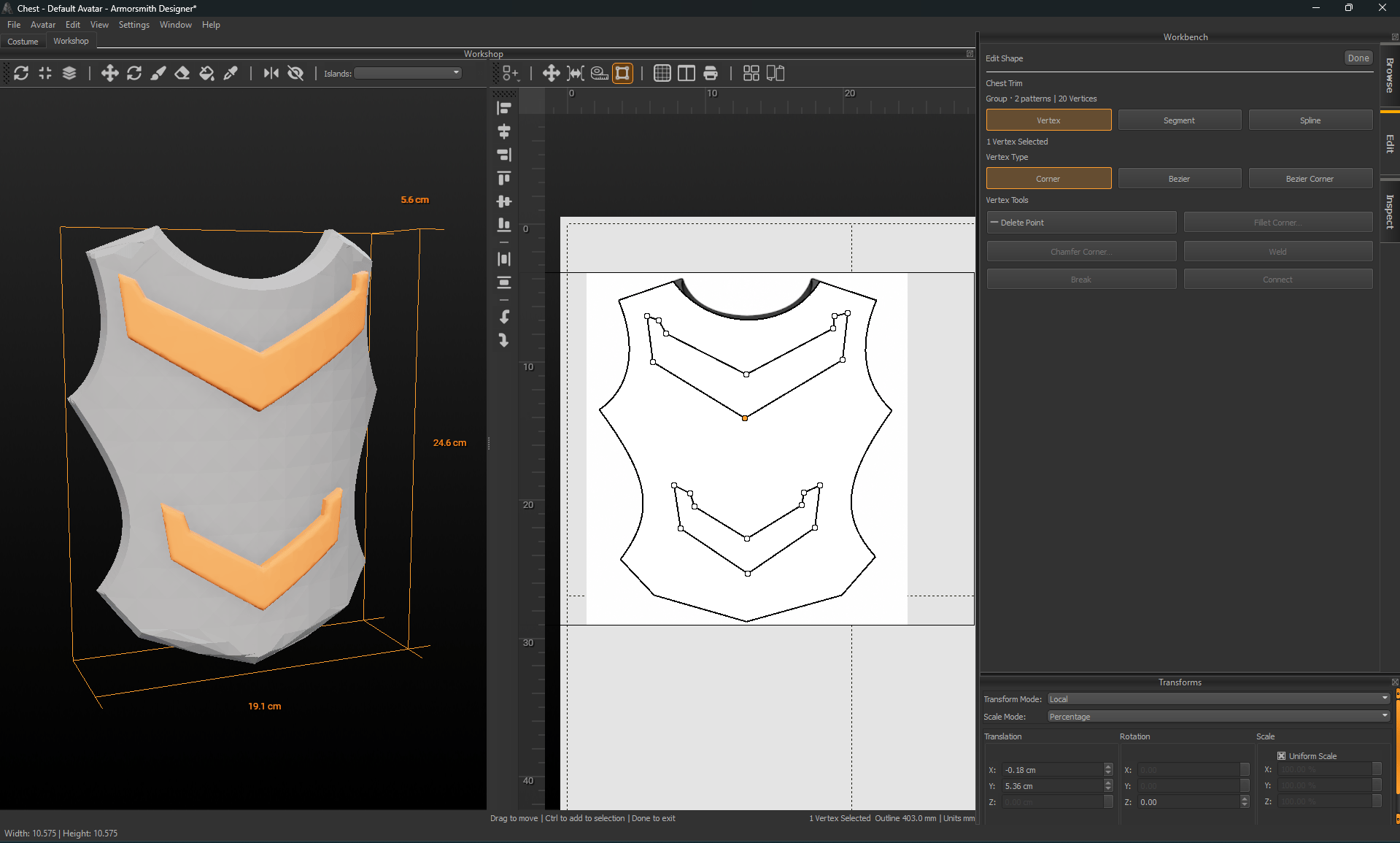
Tools change with the selection level. Select the intended target before applying an operation. Ctrl adds to selection. Use Done to finish editing.
Refine anchors and curves
Use Corner, Bezier, or Bezier Corner for the selected vertex. Straighten or curve the intended segment rather than adding extra anchors to approximate a curve. Add Point inserts a vertex on a segment without changing that curve. Delete Segment removes selected segments while keeping the remaining pieces. Break separates a segment into independent endpoints and keeps Edit Shape active. Connect joins two open endpoints with a straight segment. Breaking or opening a foam outline can remove its solid preview until you close it again.Trim, extend, or offset
- Trim removes a clicked portion between crossing paths. Provide a crossing boundary in the same workspace.
- Extend starts from an open endpoint and follows its tangent to a crossing path.
- Offset Outline… creates a separate outline at an entered distance in millimetres. Inspect tight or concave corners. If the offset collapses or crosses itself, reduce the distance; the original remains unchanged.