These instructions are for Armorsmith Designer 2.1.1.0. Earlier versions, including 2.1.0.10, can show different panels and labels.
Use Workbench → Inspect to edit properties of the selected object or workspace. Use the separate Transforms panel for position, rotation, and scale.

Choose what to inspect

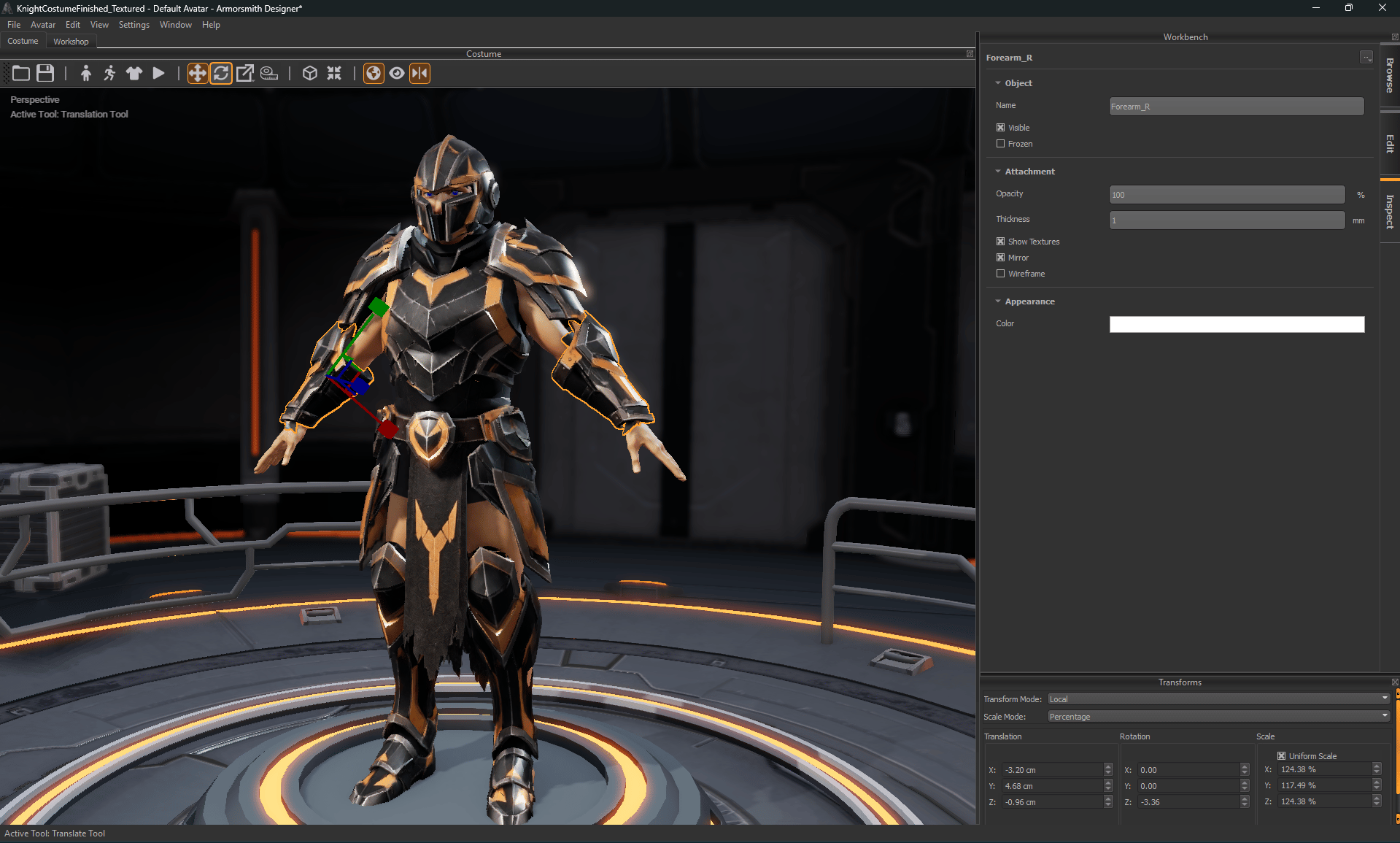
Inspect showing Forearm_R object, attachment, and appearance properties beside the selected armor. Inspect follows the selected object. Transforms remains a separate panel.
  1. Select a part in the viewport or under Browse → Attachments, or choose its source workspace under Browse → Workspaces.
  2. Open Inspect and check the displayed target name or object type.
  3. Expand the relevant section and edit its value.
  4. Inspect the result, use Edit → Undo if necessary, and save your costume.
Available fields depend on the selection. Workspace settings affect that workspace; an attached copy has its own placement and object properties.

Find workspace settings

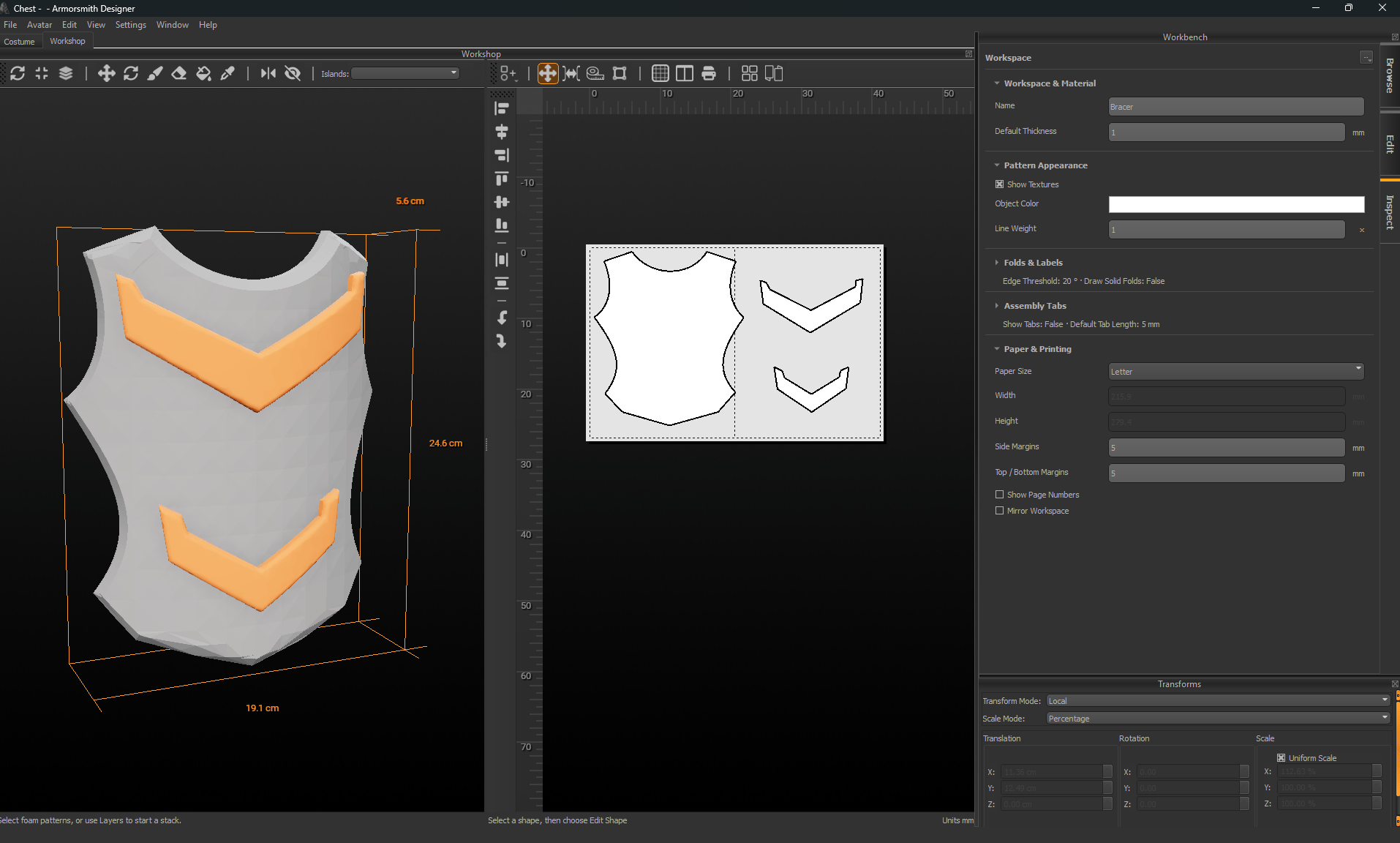
Workspace Inspect with Workspace and Material, Pattern Appearance, and Paper and Printing groups beside flat patterns. Select the workspace to inspect paper settings rather than an attached part. The older Property Grid’s Display and Print groups are now divided between these task-based sections. For example, enable edge labels in Folds & Labels and set paper size in Paper & Printing.

Edit values and appearance

Read the displayed unit before entering a number. Length fields follow the application’s measurement settings where supported; opacity is displayed as a percentage. Line Weight is a visual multiplier, not the width of a cut in millimetres. Click a color well to choose a color. Select the exact part you intend to change, inspect its appearance, and save the project to retain the edit. The available color controls do not imply that a material library is enabled.

Set shape dimensions

Select a supported rectangle, circle, or ellipse in Workshop. Inspect can show Width and Height for a rectangle or ellipse, or Radius for a circle. Enter a physical size to resize the actual outline; this is different from renaming the shape or rearranging it on paper. Use Edit → Undo to reverse a size change. Recheck foam-layer containment after resizing a raised piece.

Recover the panel

Choose Window → Workbench, then open Inspect. Use Window → Reset Window Layout if the dock arrangement is unusable. In earlier releases, these settings were shown in a separate Property Grid panel.