Navigate the 3D view
Move the pointer inside the viewport before using the mouse controls.Mirror selected attachments
In builds with the updated mirror command, select one or more attached parts, focus the Costume viewport, and press Shift+M to toggle their linked mirrors. Ctrl+Z undoes the whole mirror action, and Ctrl+Y redoes it. M activates Measure. See Attachments for attachment properties, paired parts, and mirroring several selected parts.Dense meshes and display detail
The automatic mesh LOD system uses a simplified display mesh targeting 100,000 triangles for dense models at every zoom level. Use Toggle Full Resolution in the Costume toolbar to inspect the working mesh. Printing and mesh export retain the working geometry.Costume toolbar
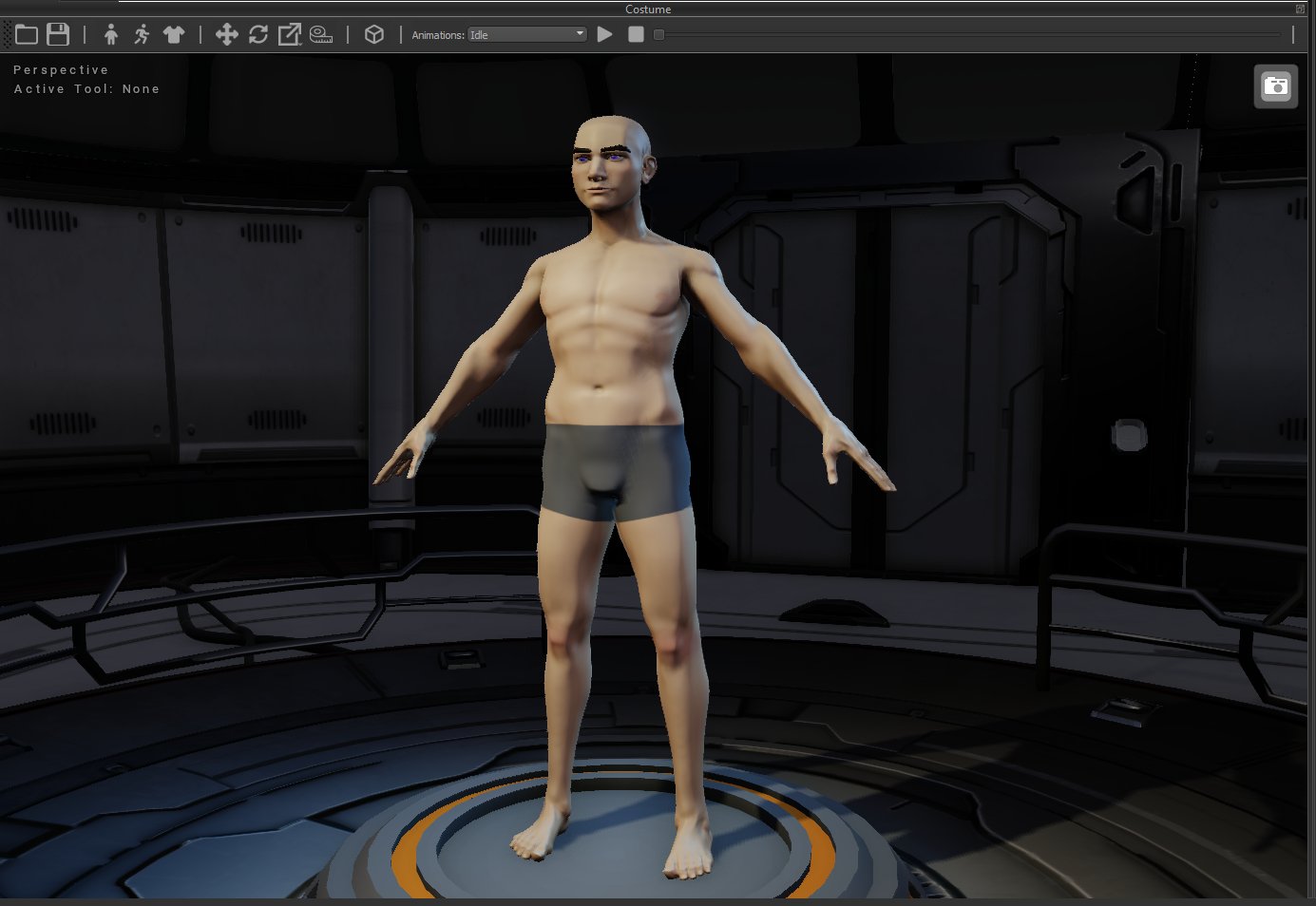
The toolbar groups file actions, avatar modes, and tools for editing selected parts.File and avatar controls
Part editing tools
For exact position, rotation, or scale values, use the Transform Panel.