Activate the tool
- Left-click a part in the Costume Viewport to select it.
- Click Translate, the four-arrow button in the toolbar above the viewport. You can also press T to activate the tool.
- Drag a colored axis handle to move the part along that axis. Release the mouse button when the part is in position.
Use the translation handles
Drag an axis handle when you want to adjust one direction at a time. Drag a plane handle between the axes when you want to reposition the part within that plane.
Choose Local or World coordinates
The Transform Mode in the Transform Panel determines the axes used by the tool.- Local follows the selected part’s orientation. Use it to move a rotated part along its own axes.
- World uses the fixed scene axes. Use it to align parts relative to the avatar and the rest of the costume.
Enter an exact position
For precise placement, select the part and edit X, Y, or Z in the Translation section of the Transform Panel. These fields use the selected Transform Mode.Example: position a helmet
- Select the helmet and activate Translate.
- Choose World in the Transform Panel.
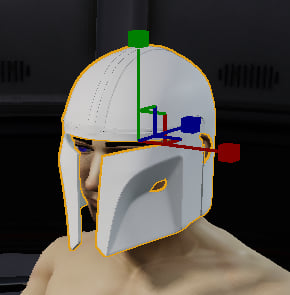
- Drag the green Y handle to adjust the helmet’s height.
- Use the red X and blue Z handles to adjust its side-to-side and front-to-back position.
- Orbit the view to check the fit from the front and side. Adjust the position until the helmet sits where you want it.