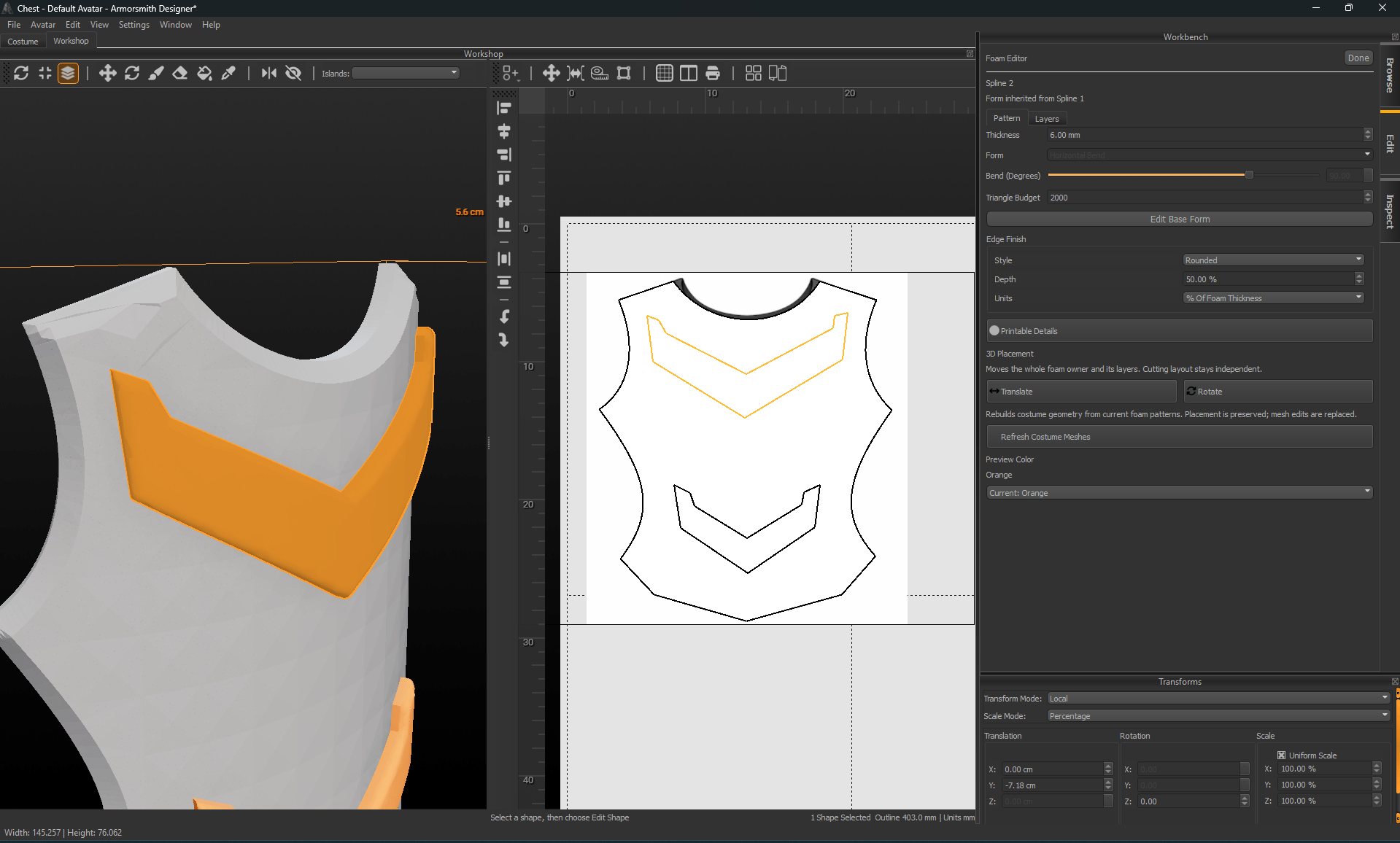
These instructions are for Armorsmith Designer 2.1.1.0. Earlier versions, including 2.1.0.10, can show different panels and labels.
Use Edge Finish to preview a cut or rounded top edge around a foam pattern. This changes the 3D thickness edge; it does not alter the bottom cut outline.

Choose a finish

Close-up of rounded orange trim with 6 mm thickness and Edge Finish set to Rounded, 50 percent, percent of foam thickness. This trim uses Rounded at 50% of its 6 mm foam thickness. Inspect the edge from an angle. Select a foam pattern, open Edit Foam → Pattern, and find Edge Finish. The finish applies around the whole top perimeter, rather than selecting individual edges. Use a 2D corner operation in Edit Shape when you want to change the flat cut outline instead.

Set depth and units

Set Depth and choose Millimeters or % Of Foam Thickness in Units.
  • Millimeters keeps a fixed physical depth when thickness changes.
  • A percentage recalculates the depth from the foam thickness.
For 6 mm foam, 50% means 3 mm depth. At 45°, that also cuts 3 mm inward. For a rounded edge, it gives a 3 mm rounding radius. Depth must stay within the foam thickness. Zero produces a square edge. Recheck the result after changing thickness, especially when using a fixed millimetre depth.

Edit more than one piece

Select the intended patterns before changing shared edge values. For a selection with mixed units, choose common units before entering Depth. Inspect each affected piece, because a suitable depth for a 6 mm base can be too large for 2 mm trim. Use Edit → Undo to reverse an unwanted edit. Record the finish and depth with your construction notes; ordinary printed cut outlines do not automatically include a fabrication diagram.