> ## Documentation Index
> Fetch the complete documentation index at: https://armorsmith-designer.mintlify.site/llms.txt
> Use this file to discover all available pages before exploring further.
# Orient costume parts with the Rotate tool
> Rotate costume parts around the X, Y, and Z axes, choose Local or World coordinates, and enter exact angles in Armorsmith Designer.
Use the **Rotate** tool to change a selected costume part's orientation around its pivot. Use it to tilt a helmet, angle a shoulder plate, or align a part with your avatar's pose.
 ## Activate the tool
1. Left-click a part in the [Costume Viewport](/interface/viewport-navigation) to select it.
2. Click **Rotate**, the circular-arrow button in the toolbar above the viewport.
3. Drag a colored ring to rotate the part around that axis. Release the mouse button when the part has the orientation you want.
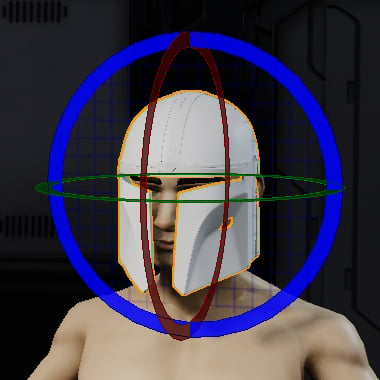
The selected part has an orange outline. The colored rings around its pivot form the rotation gizmo.
## Use the rotation rings
| Ring | Rotation |
| - | - |
| **Red — X** | Rotate around the X axis. |
| **Green — Y** | Rotate around the Y axis. |
| **Blue — Z** | Rotate around the Z axis. |
Drag one ring at a time to control the axis of rotation. Orbit the view to check the result from several angles.
## Choose Local or World coordinates
The **Transform Mode** in the [Transform Panel](/interface/transform-panel#transform-mode) determines the axes used by the tool.
* **Local** follows the selected part's orientation. Use it to rotate a part around its own axes.
* **World** uses the fixed scene axes. Use it to align a part relative to the avatar and the rest of the costume.
Armorsmith Designer uses a Y-up coordinate system. In **World** mode, the green Y ring turns the part around the vertical axis. In **Local** mode, the axes rotate with the part.
## Enter an exact angle
For precise alignment, select the part and edit **X**, **Y**, or **Z** in the [Rotation section of the Transform Panel](/interface/transform-panel#rotation). The values are measured in degrees and use the selected **Transform Mode**.
## Example: orient a helmet
1. Select the helmet and activate **Rotate**.
2. Choose **World** in the **Transform Panel**.
3. Drag the green Y ring to turn the helmet left or right.
4. Use the red X ring to adjust its forward or backward tilt, and the blue Z ring to adjust its side-to-side tilt.
5. Orbit the view to check the fit from the front and side.
Use the [Translate Tool](/interface/translate-tool) to adjust the helmet's position after setting its orientation.
Press **Z** to frame the selected part before making small adjustments. Use **Edit > Undo** if you need to reverse a rotation.
This documentation is built and hosted on [Mintlify](https://mintlify.com), a developer documentation platform.
## Activate the tool
1. Left-click a part in the [Costume Viewport](/interface/viewport-navigation) to select it.
2. Click **Rotate**, the circular-arrow button in the toolbar above the viewport.
3. Drag a colored ring to rotate the part around that axis. Release the mouse button when the part has the orientation you want.
The selected part has an orange outline. The colored rings around its pivot form the rotation gizmo.
## Use the rotation rings
| Ring | Rotation |
| - | - |
| **Red — X** | Rotate around the X axis. |
| **Green — Y** | Rotate around the Y axis. |
| **Blue — Z** | Rotate around the Z axis. |
Drag one ring at a time to control the axis of rotation. Orbit the view to check the result from several angles.
## Choose Local or World coordinates
The **Transform Mode** in the [Transform Panel](/interface/transform-panel#transform-mode) determines the axes used by the tool.
* **Local** follows the selected part's orientation. Use it to rotate a part around its own axes.
* **World** uses the fixed scene axes. Use it to align a part relative to the avatar and the rest of the costume.
Armorsmith Designer uses a Y-up coordinate system. In **World** mode, the green Y ring turns the part around the vertical axis. In **Local** mode, the axes rotate with the part.
## Enter an exact angle
For precise alignment, select the part and edit **X**, **Y**, or **Z** in the [Rotation section of the Transform Panel](/interface/transform-panel#rotation). The values are measured in degrees and use the selected **Transform Mode**.
## Example: orient a helmet
1. Select the helmet and activate **Rotate**.
2. Choose **World** in the **Transform Panel**.
3. Drag the green Y ring to turn the helmet left or right.
4. Use the red X ring to adjust its forward or backward tilt, and the blue Z ring to adjust its side-to-side tilt.
5. Orbit the view to check the fit from the front and side.
Use the [Translate Tool](/interface/translate-tool) to adjust the helmet's position after setting its orientation.
Press **Z** to frame the selected part before making small adjustments. Use **Edit > Undo** if you need to reverse a rotation.
This documentation is built and hosted on [Mintlify](https://mintlify.com), a developer documentation platform.